Introduction
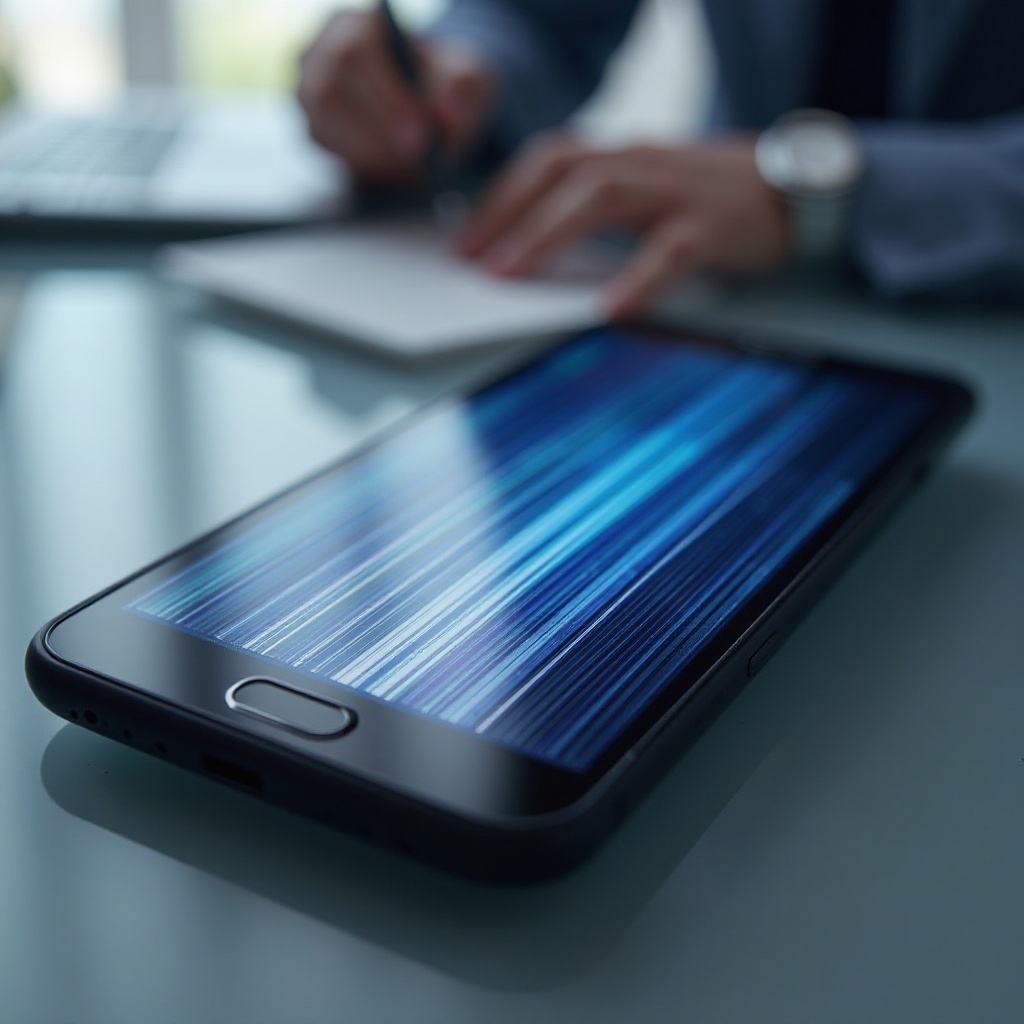
Visual disturbances like lines on your Samsung phone screen can be frustrating and disrupt your interaction with your device. Identifying the causes of these lines and addressing them with effective solutions is crucial in restoring your phone’s display. In this article, we’ll explore the various reasons behind the appearance of lines on a Samsung screen, the necessary troubleshooting steps, effective DIY solutions, the right time to seek professional repairs, and preventive measures to safeguard your device.

Common Causes of Line in Screen Issues in Samsung Phones
Samsung’s reputation for producing high-quality screens doesn’t completely shield it from screen issues. Several factors may lead to lines on your screen:
-
Manufacturing Defects: Sometimes, issues in the production process lead to defects manifesting as lines on the screen shortly after purchase.
-
Physical Damage: Rough handling, such as drops or pressure on the screen, might damage the display components, resulting in visible lines.
-
Software Glitches: Lines may also appear due to software bugs or incompatibilities following an update.
Understanding these causes provides a foundation for determining the next steps in troubleshooting or repairs.
Troubleshooting the Samsung Line in Screen Problem
Tackling the issue upfront involves a systematic diagnostic approach to distinguish if the problem stems from hardware or software:
-
Identifying the Problem: Scrutinize whether the lines are persistent, as continuous lines often indicate hardware malfunctions, while intermittent lines suggest software issues.
-
Performing a Soft Reset: Restart your phone to clear temporary system glitches. Hold the power button and select ‘Restart’.
-
Checking for Software Updates: Navigate to ‘Settings > Software Update’ to ensure your phone runs the latest software version, which can often resolve glitches.
Once these preliminary steps are completed, you’ll have a clearer understanding of whether further actions or professional intervention are required.
DIY Solutions for Samsung Screen Line Problems
If it’s determined that a software issue is the cause, there are several DIY fixes you can employ:
-
Software Fixes: Conduct a factory reset if software is at fault. Remember to back up your data beforehand. Go to ‘Settings > General Management > Reset > Factory data reset’.
-
Screen Calibration: Screen calibration apps available in the Google Play Store can guide you through this process to fix touch and sight-related issues.
-
Safe Mode Diagnosis: Booting in Safe Mode disables third-party apps, helping identify if any app is causing the screen lines. Hold the power button, then ‘Power Off’ until ‘Safe Mode’ appears.
These solutions can fix many screen line problems if they are not due to hardware issues.
When to Seek Professional Repair for Samsung Screen Issues
If DIY attempts don’t rectify the screen lines, professional repair might be the next step:
-
Persistent Lines: Continuous lines existing post-DIY attempts often necessitate expert inspection to check for internal damage.
-
Cracked or Damaged Screens: Visible physical damage usually requires screen replacement. Attempting repairs yourself can exacerbate the problem.
-
Warranty and Repair Options: Consult your warranty agreement. Authorized service centers can provide repairs without voiding it.
Professional repair ensures that in-depth problems are handled accurately and safely.
Preventive Measures to Avoid Screen Issues
Prevention extends your phone’s lifespan and preserves the screen condition. Effective precautions include:
-
Using Protective Accessories: Use quality screen protectors and cases for cushioning against potential impacts and pressure.
-
Handling Phone with Care: Keep your phone in safe locations, avoiding tight spaces where excess pressure might occur. Handle with caution during use.
-
Regular Maintenance Tips: Routinely clean your screen with a microfiber cloth to prevent dirt accumulation. Avoid exposing your phone to extreme temperatures, which can affect screen responsiveness.
Implementing these measures minimizes the chance of encountering lines on your Samsung phone screen in the future.
Conclusion
Lines on a Samsung phone screen require timely resolution to restore functionality. By understanding the causes, effectively troubleshooting, applying DIY solutions, knowing when to seek repairs, and adopting preventive measures, users can maintain the visual clarity and operational efficiency of their devices.
Frequently Asked Questions
What causes lines to appear on my Samsung phone screen?
Lines usually arise from manufacturing defects, physical damage, or software glitches.
Can I fix the line in screen issue at home?
Yes, particularly if it’s software-related, through updates, factory resets, or calibration.
How much does it cost to repair a Samsung screen?
Repair costs can differ based on the model and damage, often ranging from $100 to $300. Warranty can cover some repairs.