Introduction
Beats headphones offer an unmatched sound experience, but ensuring they are charged properly is crucial for uninterrupted listening pleasure. If you’re new to Beats or recently upgraded, distinguishing charging indicators can be puzzling. This guide delves into how to verify that your Beats are charging correctly, manages charging issues effectively, and maintains optimal battery health.
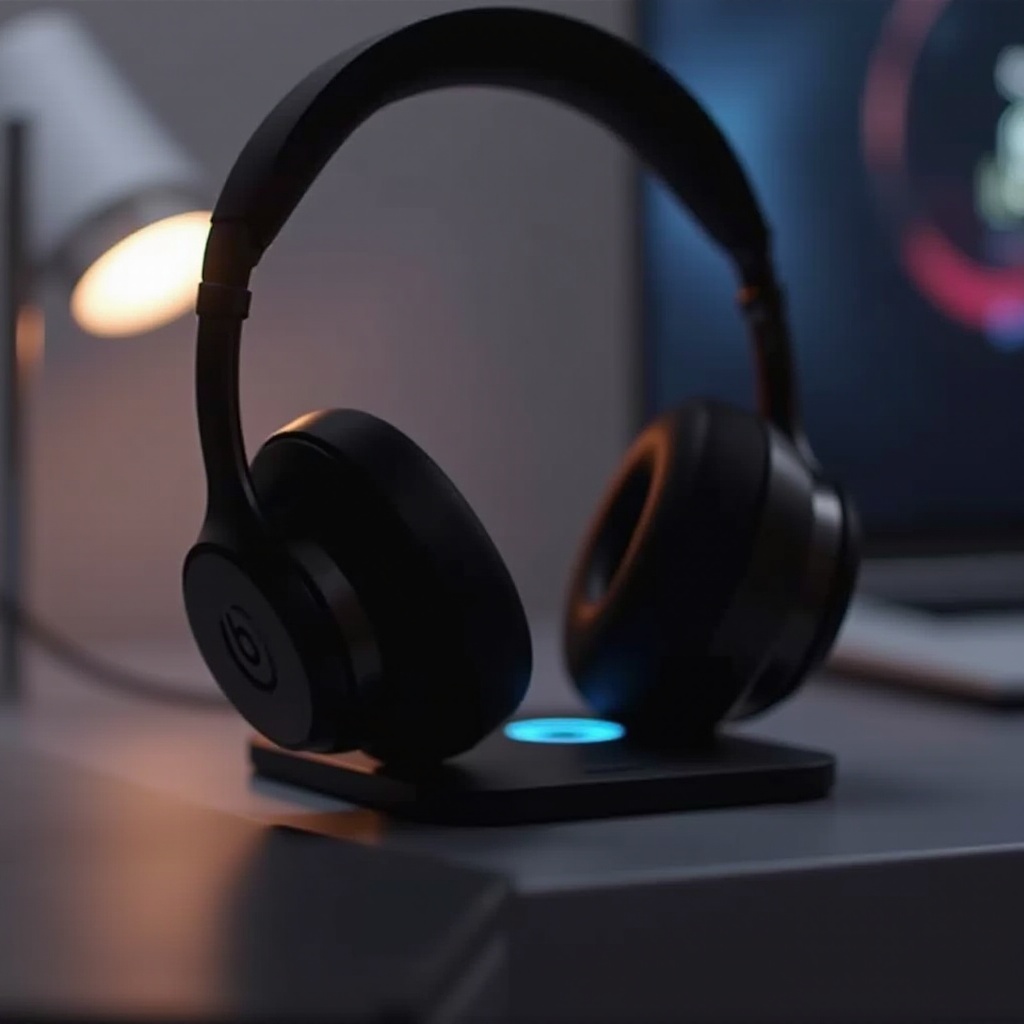
Understanding Beats Headphones Charging Indicators
Efficiently managing your Beats’ charging ensures they are ready when you need them. Different models offer distinct charging notifications, primarily communicated through indicator lights.
Decoding the Indicator Lights on Your Beats
- Solid White Light: Signifies full charge and readiness for use.
- Solid Red Light: Warns of a low battery that needs immediate charging.
- Blinking Light: This can indicate active charging, depending on the color displayed.
Additional Charging Signals in Beats Models
Different Beats models come with specific charging signal variants:
– Beats Studio and Solo Models: Typically exhibit a white pulsing light to indicate charging.
– Powerbeats and Powerbeats Pro: Often display ascending red or white lights, signaling active charging.
Understanding these signals ensures you manage the charging process with confidence.
Charging Procedures for Different Beats Headphones
Charging processes vary slightly between models, so it’s vital to comprehend the exact procedures for yours to preserve functionality and battery health.
Steps for Charging Beats Studio
- Plug your Beats Studio into a power source using the official USB cable.
- Verify the presence of a pulsing white light, indicating charging is underway.
Guidelines for Charging Beats Solo
- Identify the charging port on your Beats Solo.
- Connect using the designated cable to an appropriate power supply.
- Observe the indicator light; it typically turns on or pulses to affirm charging progression.
How to Charge Powerbeats and Powerbeats Pro
- Place Powerbeats in the charging case, ensuring the case itself is connected to a charger.
- Inspect the status light on the case front; a blinking red light usually confirms charging.
With charging processes managed, addressing occasional issues ensures your headphones’ longevity.
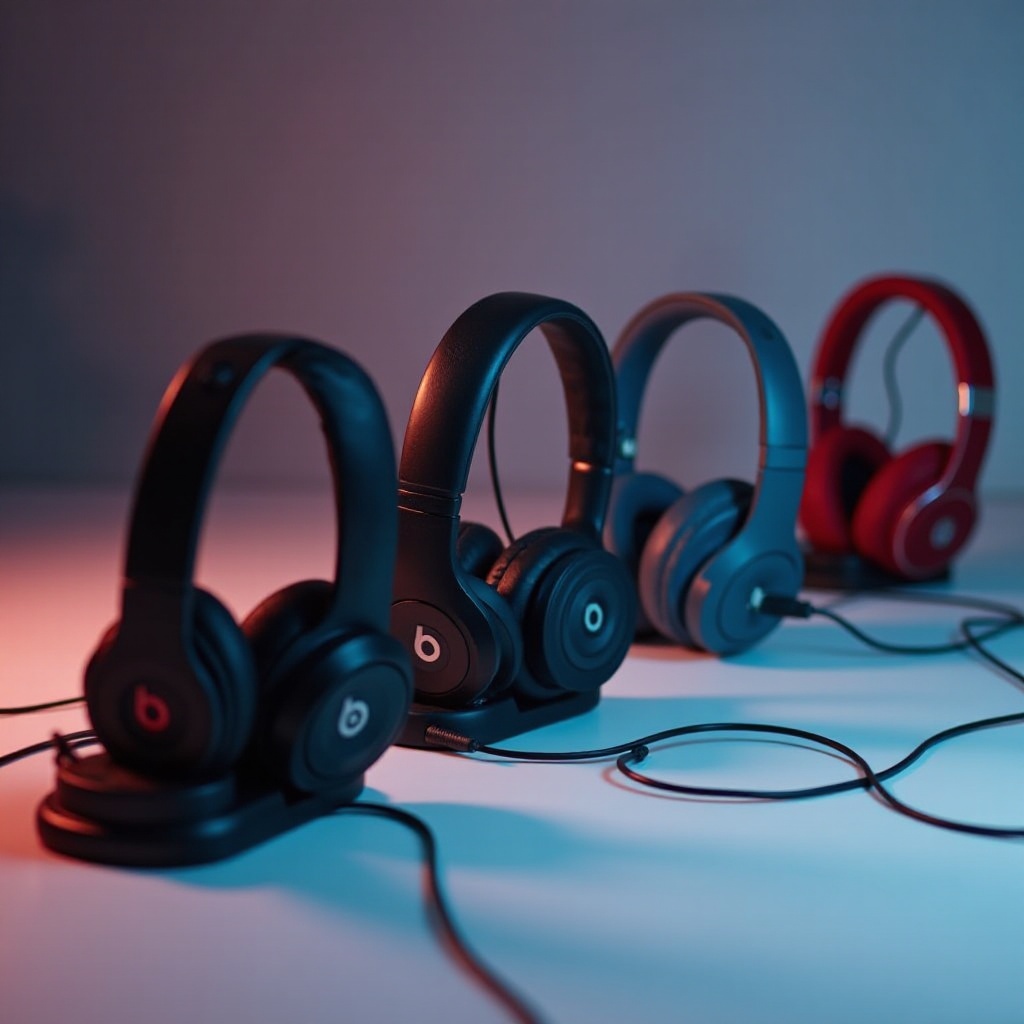
Troubleshooting Common Charging Issues
Despite adhering closely to charging instructions, complications can occasionally arise. Here’s how to troubleshoot effectively.
What to Do If Your Beats Are Not Charging
- Verify the Power Source: Confirm the outlet or USB port’s functionality by testing with another device.
- Examine the Charging Cable: Check for damage or fraying, and replace it if needed.
Fixing Malfunctioning Indicator Lights in Beats
- Perform a Soft Reset: Cycling the headphones off and back on may resolve minor problems.
- Update Firmware: Ensuring your Beats run on the latest firmware might resolve issues linked to charging or indicators.
By following these steps, you can resolve most issues independently without external help.
Tips for Maintaining Battery Health in Beats Headphones
Proper charging habits coupled with overall battery maintenance guarantee you get the most out of your Beats.
Best Charging Practices
- Prevent Overcharging: Disconnect your headphones when fully charged to avoid battery degradation.
- Use Authentic Chargers: Stick to official chargers; third-party brands might not provide suitable energy output.
Extending Your Battery Life
- Routine Usage: Regular use of the headphones helps keep the battery efficient.
- Optimal Storage Conditions: Storing at moderate temperatures prevents battery damage.
By maintaining these practices, your Beats will continue to provide exemplary performance and longevity.
Conclusion
Verifying that your Beats are charging effectively is pivotal to enjoying nonstop high-quality sound. By understanding indicator signals, adhering to correct charging practices, and maintaining the battery’s health, you ensure that your headphones remain a reliable companion for years. Equip yourself with these insights to troubleshoot like a pro, maintaining seamless auditory experiences without interruptions or concern.
Frequently Asked Questions
How can I check if my Beats have a full charge?
A solid white light or the specific indicators in your user manual will typically confirm a full charge.
Why do my Beats headphones stop charging midway?
This issue might be due to a defective cable, power source problems, or a required software update. Always inspect these aspects initially.
What should I do if my Beats charging light doesn’t appear?
Try resetting your headphones, inspecting the functionality of the charger and cable, and ensuring your device firmware is current.