Introduction
Constant calls from unknown numbers or spam can be more than just bothersome—they can disrupt your daily life. For Samsung users, there are built-in features and methods to block these disruptive calls effectively. This guide will walk you through everything you need to know about using Samsung’s features and third-party apps to block unwanted calls.
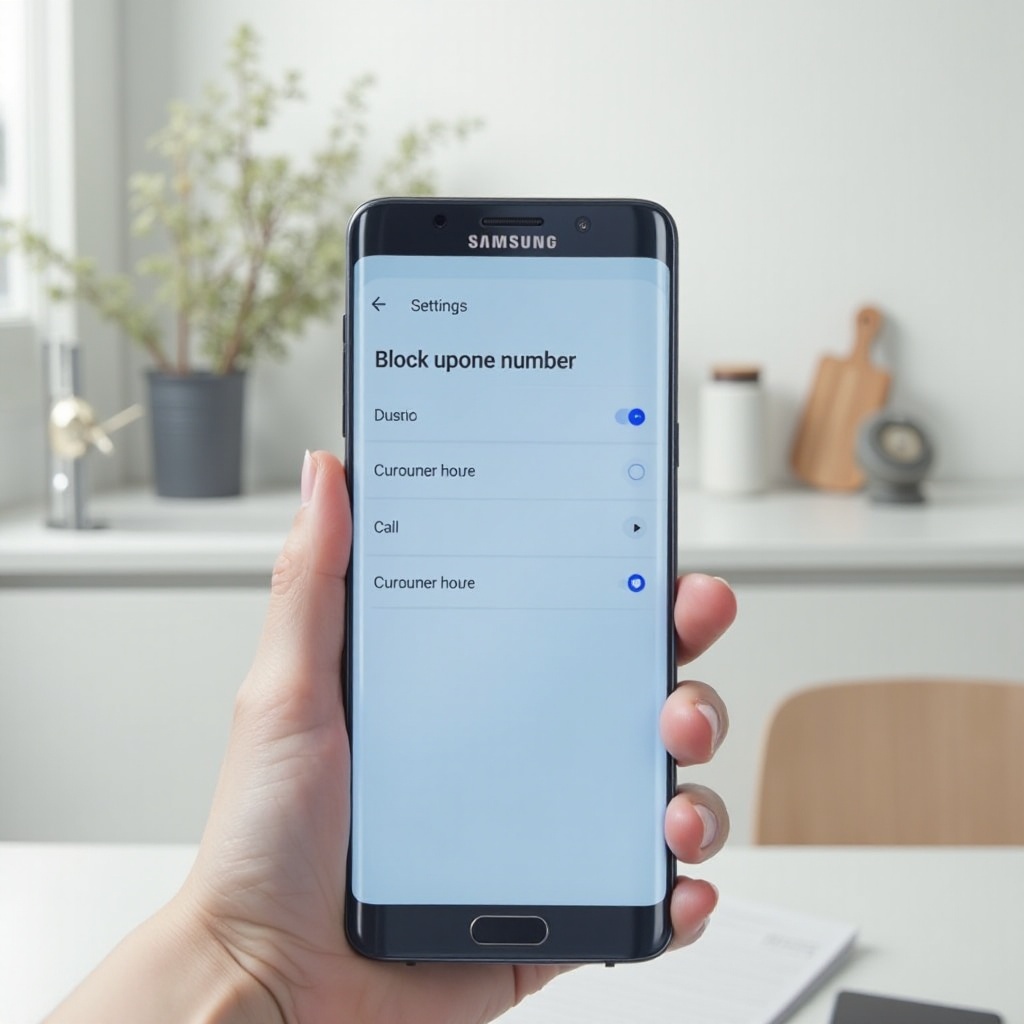
Navigating Samsung’s Call Blocking Features
Samsung smartphones come equipped with intuitive features designed to help users manage incoming calls. Understanding how to utilize these features significantly enhances your privacy and reduces interruptions.
Using the Phone App for Blocking
The Phone app on Samsung devices offers a simple way to block numbers:
1. Open the Phone app.
2. Navigate to the call logs.
3. Select the number you wish to block.
4. Tap ‘Details’ and then choose ‘Block’ or ‘Block Contact’.
Advantages of In-Built Blocking Features
Samsung’s native blocking options are beneficial for several reasons:
– Ease of Use: These features are designed with user simplicity in mind, requiring no complex steps.
– Instant Protection: Blocking is immediate, ensuring that unwanted calls are stopped promptly.
– No Extra Applications Needed: Using built-in options eliminates the need for additional apps that might consume storage or require extensive permissions.
Step-by-Step Guide to Blocking Numbers
Effectively blocking numbers can prevent unnecessary disruptions, fostering a more peaceful environment. Samsung devices provide several methods to handle this based on where the unwanted contact information is sourced.
Blocking from the Call Log
To block a number from your call log, follow these steps:
1. Open the Phone app.
2. Navigate to your call log.
3. Tap the number that you want to block, then select ‘Block’.
This method ensures you promptly block any number that recently called you.
Blocking from Contacts
If the number is a saved contact:
1. Open your Contacts app.
2. Find the contact you wish to block.
3. Tap ‘More’ or the three dots menu and choose ‘Block Contact’.
This feature is particularly useful for avoiding calls from known contacts.
Blocking Unknown or Private Numbers
To block anonymous or unknown numbers:
1. Open Phone settings.
2. Select ‘Block numbers’.
3. Toggle the ‘Block unknown/private numbers’ feature on.
Managing Your Blocked Numbers List
From time to time, you may need to review your blocked numbers list. Samsung’s interface makes managing these blocks straightforward:
1. Open the Phone app settings.
2. Tap on ‘Blocked numbers’.
3. You can view all blocked numbers and choose to unblock any if needed.
By managing your blocked numbers list, you maintain control over who can reach you, allowing adjustments as your preferences change over time.
Exploring Third-Party Apps for Call Blocking
While Samsung offers efficient tools, some users might require more advanced features provided by third-party apps. These applications can significantly amplify blocking capabilities.
Recommended Apps for Enhanced Security
Consider these apps from the Google Play Store:
– Truecaller: Recognized for superior spam detection and user-friendly interface.
– Hiya: Offers call blocking and spam identification with ease of use.
Pros and Cons of Using Apps
Benefits and drawbacks include:
– Pros: Enhanced blocking features and sophisticated spam filters.
– Cons: Some apps require additional permissions and could impact battery life.
While third-party apps provide advanced functionalities, weighing these against potential downsides is important before installation.
Additional Samsung Features for Controlling Calls
In addition to blocking, Samsung offers features like Smart Call and Do Not Disturb to further enhance call management.
Enabling Samsung Smart Call
Samsung Smart Call helps identify unknown numbers:
1. Open Phone app settings.
2. Enable ‘Caller ID and spam protection’.
This feature adds a layer of protection by providing additional caller ID information when available.
Utilizing Do Not Disturb Mode
Do Not Disturb (DND) mode is excellent for managing contact from specific numbers at chosen times:
1. Access ‘Settings’ and select ‘Do Not Disturb’.
2. Customize your schedule, allowing calls from select contacts.
These features offer expansive control over your phone’s communication settings, ensuring you don’t miss important calls while avoiding unwanted interference.
Troubleshooting Common Issues
Despite using proper configurations, issues with call blocking may arise. Here are some common resolutions:
– Can’t Block Number: Verify that your phone’s software is up to date.
– Blocked Call Notifications: Recheck your phone and app settings for potential misconfigurations.
Having a troubleshooting plan ensures persistent issues can be effectively addressed, maintaining the efficiency of your blocking strategy.
How to Report Spam and Fraudulent Calls
Sometimes, blocking isn’t enough, and reporting can aid broader initiatives to curb spam. Here’s how:
1. When receiving a spam call, use your Phone app to select ‘Report Number’ if available.
2. Apps like Truecaller incorporate direct reporting options.
By reporting, you assist in collective efforts to minimize spam sources, contributing to an overall enhancement of call-blocking effectiveness.
Conclusion
Blocking unwanted calls on Samsung devices is straightforward with built-in features and optional third-party apps. By leveraging these tools, you can ensure peace of mind and control over whom you allow to contact you. Implement these strategies to efficiently manage your call settings as outlined in this guide.
Frequently Asked Questions
Can I block texts from a number I’ve blocked calls from?
Yes, blocking a number on Samsung often stops calls and texts, but check settings to ensure texts are also covered.
How do I unblock a number on my Samsung phone?
To unblock a number, go to the Phone app settings, access ‘Blocked numbers,’ and select the number to unblock.
Will the caller know they’ve been blocked?
Blocked callers typically receive a message that you’re unavailable, but the exact response depends on the caller’s carrier.