Introduction
Installing Windows 11 on your Chromebox 5 can significantly enhance its versatility and performance. With the latest features and improved user interface of Windows 11, you can transform your Chromebox into a powerful computing device suitable for a wide range of tasks. This guide provides a detailed walkthrough for the installation process, ensuring a seamless transition.
Is Your Chromebox 5 Compatible?
Before proceeding, it is essential to verify your Chromebox 5’s compatibility with Windows 11. The operating system requires specific hardware:
- Processor: 1 GHz or faster with at least two cores
- RAM: 4 GB or more
- Storage: 64 GB or larger
- TPM Version: TPM 2.0
- Graphics Card: DirectX 12 compatible graphics / WDDM 2.x
You can check compatibility using Microsoft’s PC Health Check tool or by reviewing your device’s specifications manually. Confirming your device meets these requirements will prepare you for the next steps.
Preparing for the Installation
Proper preparation is crucial to avoid problems during installation. Take these steps:
- Back Up Your Data: Safeguard your important files using cloud storage or an external hard drive.
- Create a Recovery Drive: Prepare a ChromeOS recovery drive to restore your device if needed.
These preparations ensure you have a safety net in case of issues, allowing you to move forward with confidence as you set up the installation media.
Downloading and Creating Bootable Media
Creating bootable media is a critical step in installing Windows 11:
- Download Windows 11 ISO: Obtain the ISO file from the official Microsoft website.
- Use Rufus to Create Bootable USB:
- Insert an 8GB or larger USB drive into your computer.
- Launch Rufus, select your USB, and choose the downloaded Windows 11 ISO file.
- Start the process and wait for completion.
With your bootable USB prepared, you’re ready to configure your Chromebox’s BIOS for installation.
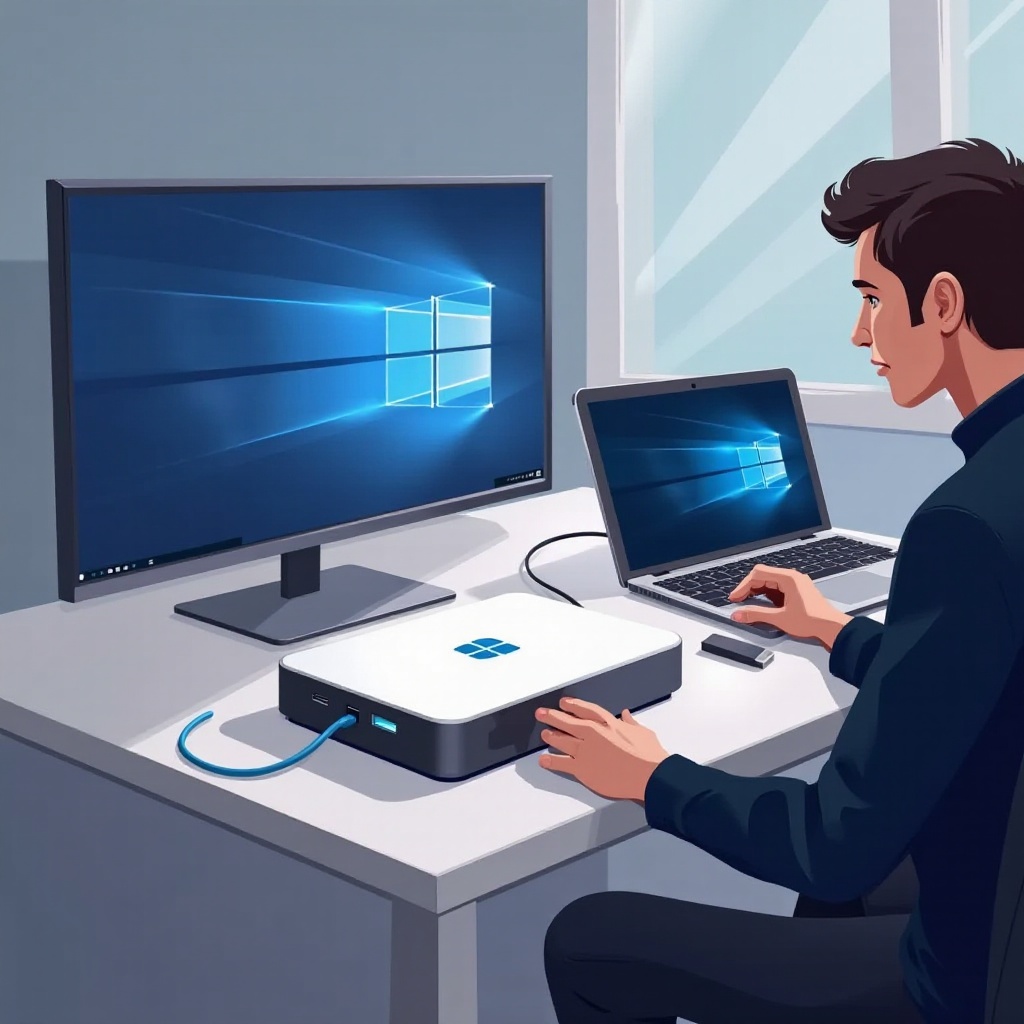
Configuring BIOS on Chromebox 5
The next step involves configuring the BIOS settings on your Chromebox. This may sound technical, but it is straightforward:
- Access BIOS Settings: Restart your Chromebox and press the Esc key repeatedly to enter the BIOS menu.
- Disable Secure Boot: Navigate to the ‘Secure Boot’ option and disable it to allow booting from external media.
Configuring the BIOS correctly enables your device to start the installation process from the USB drive, setting the stage for Windows 11 installation.
Installing Windows 11 on Chromebox 5
With preparations complete, follow these steps to install Windows 11:
- Boot from USB: Restart your Chromebox with the USB drive connected and select it from the boot menu.
- Follow Windows Installation Prompts: The installation wizard will guide you through setup. Make selections according to your needs and partition the drive when prompted.
Upon completion, your Chromebox will operate on Windows 11, offering a variety of new features and functionalities that improve overall user experience.
Troubleshooting Common Installation Issues
If you encounter issues during installation, here are solutions for typical problems:
- Installation Errors: Double-check the ISO file and creation of the bootable media. Restart the process if errors persist.
- Driver Issues: Update drivers via the Device Manager post-installation, ensuring full compatibility with Windows 11.
Resolving these potential issues will allow your installation to proceed smoothly and enable you to move on to optimization tasks.
Post-Installation Setup and Optimization
After installation, setting up Windows 11 correctly is essential for optimal performance:
- Update Windows and Drivers: Use Windows Update to download the latest updates for Windows 11 and update your device drivers accordingly.
- Personalize Settings: Adjust settings for display, sound, and other features to tailor the system to your liking.
These steps will maximize your user experience, taking full advantage of everything Windows 11 has to offer on your Chromebox 5.
Conclusion
Transitioning your Chromebox 5 to Windows 11 opens up a world of new possibilities. By following these detailed steps, you have transformed your device into a versatile powerhouse. Enjoy exploring the many features of Windows 11 and customize the system to suit your personal and professional needs.
Frequently Asked Questions
Can I install Windows 11 on any Chromebox?
Not all Chromeboxes meet Windows 11 hardware requirements. Check your device specifications before attempting installation.
What should I do if the installation fails?
Ensure your bootable media is correctly created and BIOS settings are configured. Consult online resources for troubleshooting advice if issues persist.
Is it possible to revert to Chrome OS after installing Windows 11?
Yes, restoring Chrome OS is possible with a recovery drive. Ensure important data is backed up before reverting.