Introduction
The Fire TV Stick turns any regular television into a smart entertainment powerhouse, granting access to a vast library of streaming content. Occasionally, however, users face technical challenges that disrupt their viewing. Recognizing and actively addressing these issues ensures uninterrupted enjoyment of favorite shows and movies. This guide will provide practical solutions to common Fire TV Stick problems, allowing users to maintain a seamless streaming experience.
Understanding Common Fire TV Stick Issues
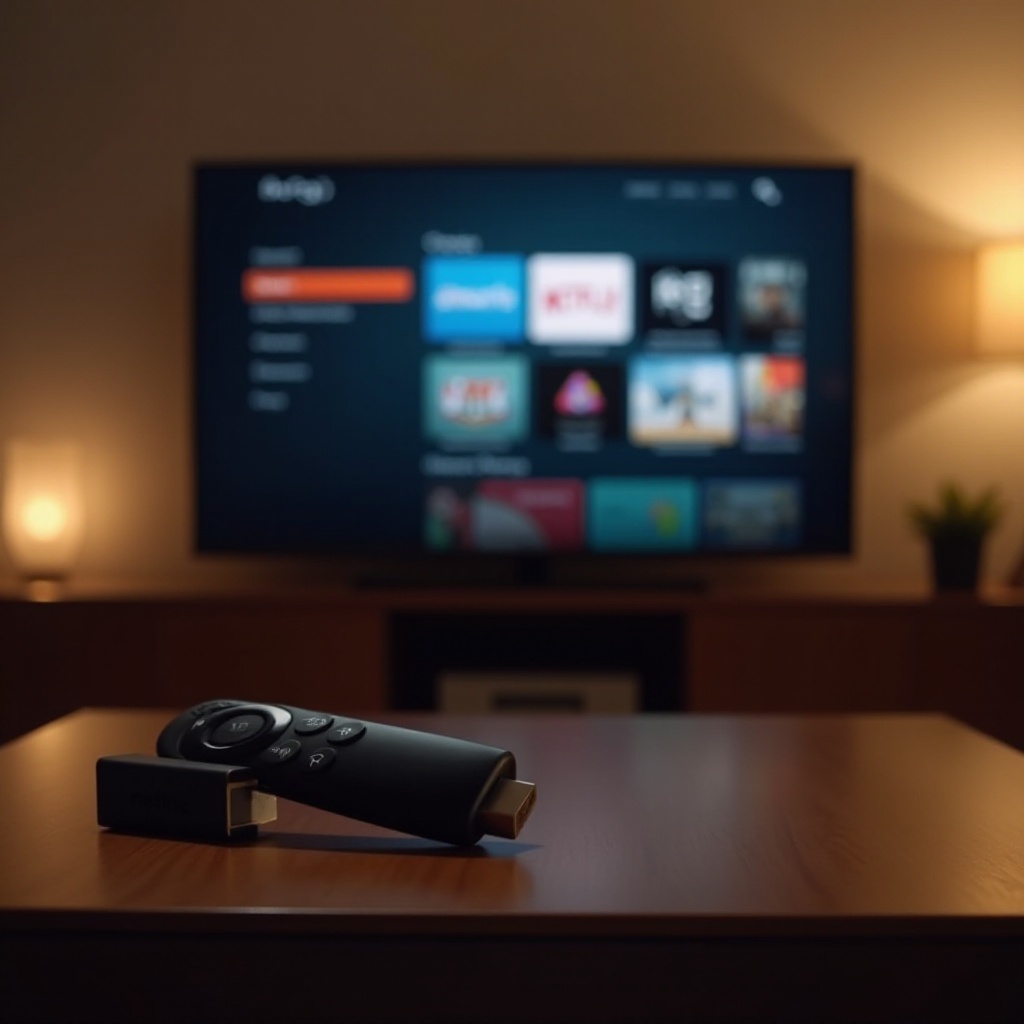
Before diving into solutions, it’s vital to pinpoint the frequent challenges faced by Fire TV Stick users. Connectivity hiccups often stem from weak Wi-Fi signals or router difficulties. Streaming and buffering woes might be due to inconsistent internet speeds. Video or audio quality problems can arise from mismatched settings, while remote control troubles are generally due to pairing faults or battery drain. Identifying these issues equips users with the knowledge to tackle them efficiently.
Troubleshooting Connectivity Issues
Connectivity challenges are a common frustration for users. These can result in lagging streams or an inability to access services.
1. Check Internet Connection and Speed: Begin by verifying the stability of your Wi-Fi network. Test internet speed using another device to ensure it’s at least 3 Mbps for SD or around 5 Mbps for HD streaming.
2. Reboot Router and Fire TV Stick: Often, a simple restart resolves connectivity problems. Unplug your router and Fire TV Stick for 30 seconds, then plug them back in.
3. Ensure Proper Cable Connections: Verify that HDMI and power cables are firmly connected. Loose cables could be the cause of intermittent connectivity issues.
Next, we will address the streaming concerns that often go hand-in-hand with connectivity problems.
Resolving Streaming and Buffering Problems
Once you’re certain of a solid internet connection, the next step is to tackle any streaming hindrances, often caused by software glitches or network settings.
1. Assess and Optimize Internet Speed and Bandwidth: If streaming lags, consider reducing video quality or checking that no other device is heavily consuming bandwidth.
2. Clear Cache and Data on Fire TV Stick: Navigate to Settings > Applications > Manage Installed Applications, select an app, and clear its cache to conserve resources.
3. Update Fire TV Stick Software and Apps: Ensure your system and apps are up to date by going to Settings > My Fire TV > About > Check for Updates to minimize glitches.
With streaming issues managed, let’s focus on enhancing the audio and visual facets of your Fire TV setup.
Fixing Audio and Video Quality
Exceptional audio and video quality is essential for an immersive streaming experience. Here are some solutions:
1. Adjust Resolution Settings: Go to Settings > Display & Sounds > Display > Video Resolution to match it with your TV’s capabilities.
2. Ensure TV Compatibility with Fire TV Stick: Confirm your TV’s specifications align with the Fire TV Stick’s settings.
3. Resolve Audio Output Issues: For audio problems, check settings in Settings > Display & Sounds > Audio and select the correct device.
Ensuring smooth audio-visual settings naturally leads to ensuring that your control mechanisms are efficient, which we will discuss next.
Addressing Remote Control Problems
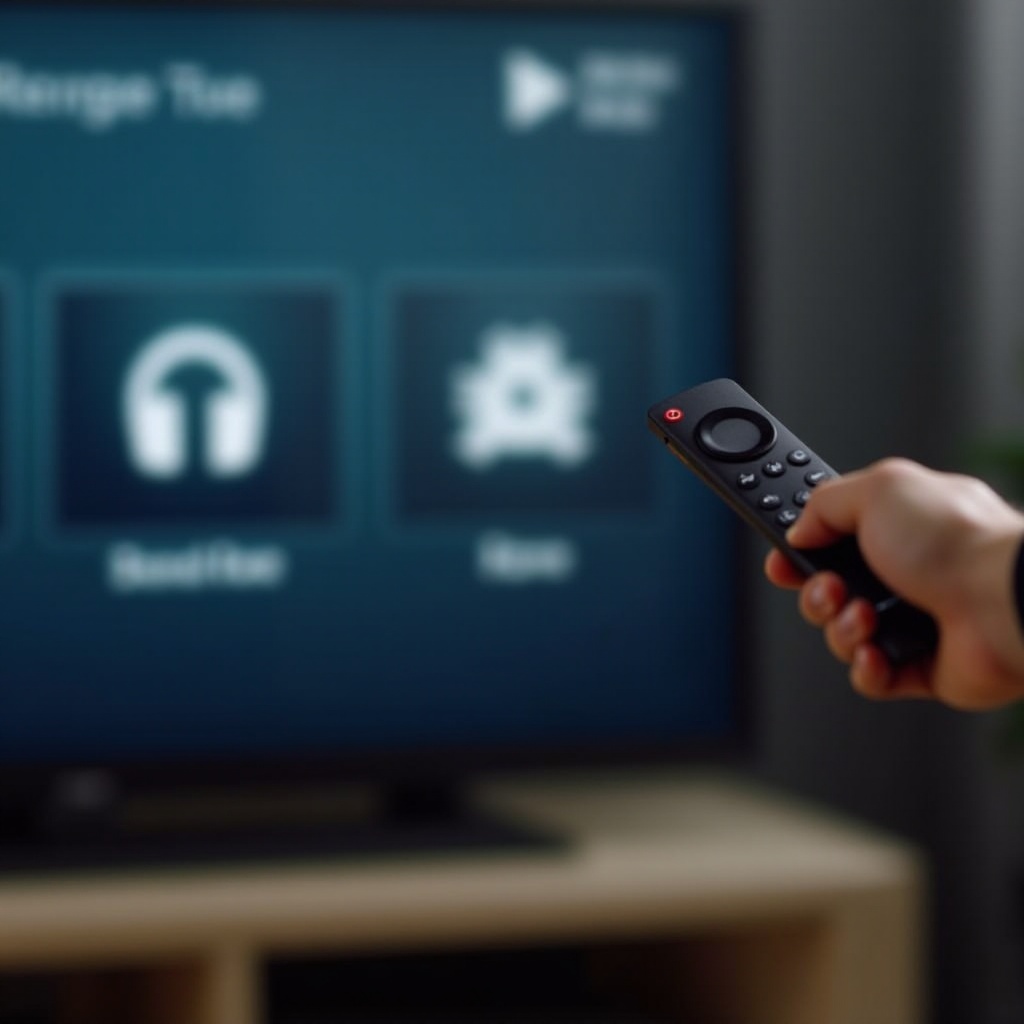
Troubles with the remote control can be irritating but are often easily fixed.
1. Check and Replace Remote Batteries: Dead batteries are frequently the culprit. Swap them out and ensure correct placement.
2. Re-pair the Remote with the Fire TV Stick: Go to Settings > Controllers & Bluetooth Devices > Amazon Fire TV Remotes > Add New Remote and follow the instructions to pair.
3. Use the Fire TV App as an Alternative Remote: If the physical remote fails, download the Fire TV app on your smartphone and use it as a substitute.
Having resolved basic issues, let’s look into advanced troubleshooting for persistent problems.
Advanced Troubleshooting Steps
For chronic issues, advanced troubleshooting might be necessary.
1. Performing a Factory Reset on the Fire TV Stick: Navigate to Settings > My Fire TV > Reset to Factory Defaults, which erases personal settings and apps.
2. Reset App Settings: Resetting settings on individual apps can correct specific app performance issues.
3. Contact Fire TV Stick Support: When issues persist despite your efforts, consult Amazon’s official support or online forums for more targeted advice.
Conclusion
By following this comprehensive guide, you can effectively troubleshoot and resolve most issues with your Fire TV Stick. Regularly updating your device and maintaining it properly ensures that the optimal streaming experience continues. Armed with these tools, enjoy uninterrupted entertainment on your television.
Frequently Asked Questions
How do I reset my Fire TV Stick without a remote?
Use the Fire TV app on your smartphone to navigate to Settings > My Fire TV > Reset to Factory Defaults.
What to do if my Fire TV Stick is not turning on?
Ensure all cables are properly connected and the power source is active. Try using a different HDMI port.
How can I improve buffering issues on my Fire TV Stick?
Lower streaming resolution in settings, ensure Wi-Fi strength is strong, and minimize simultaneous internet usage on other devices.