Introduction
Experiencing the ‘second monitor not detected’ issue in Windows 10 can significantly hinder your productivity and disrupt your work processes. Having dual monitors is essential not only for professionals for enhanced work efficiency but also for gamers who crave an immersive experience. This issue might arise due to several reasons such as loose connections or outdated drivers, but fortunately, its resolution often doesn’t require significant technical know-how. This guide provides step-by-step solutions to resolve the issue, ensuring your dual-monitor setup functions smoothly.
Initial Checks and Connections
Before delving deep into technical solutions, it’s crucial to start with some basic troubleshooting to ensure all hardware connections are secure:
- Examine the Cables: Inspect HDMI, DisplayPort, or VGA cables for any damage or wear and ensure they are firmly connected.
- Inspect the Ports: If you suspect a port might be faulty, try connecting the monitor to a different port.
- Test the Monitor: Connect the monitor to another device. If it functions correctly elsewhere, the problem might be with your PC or its configurations.
Performing these preliminary checks is a foundation for further troubleshooting. If the issue persists, delving into display settings configurations is vital for having Windows recognize the second monitor.
Adjusting Display Settings
Having confirmed that all connections are intact, the next step involves tweaking Windows 10 display settings to potentially solve the detection problem:
- Access Display Settings: Right-click on the desktop and select ‘Display settings’ to access display configurations.
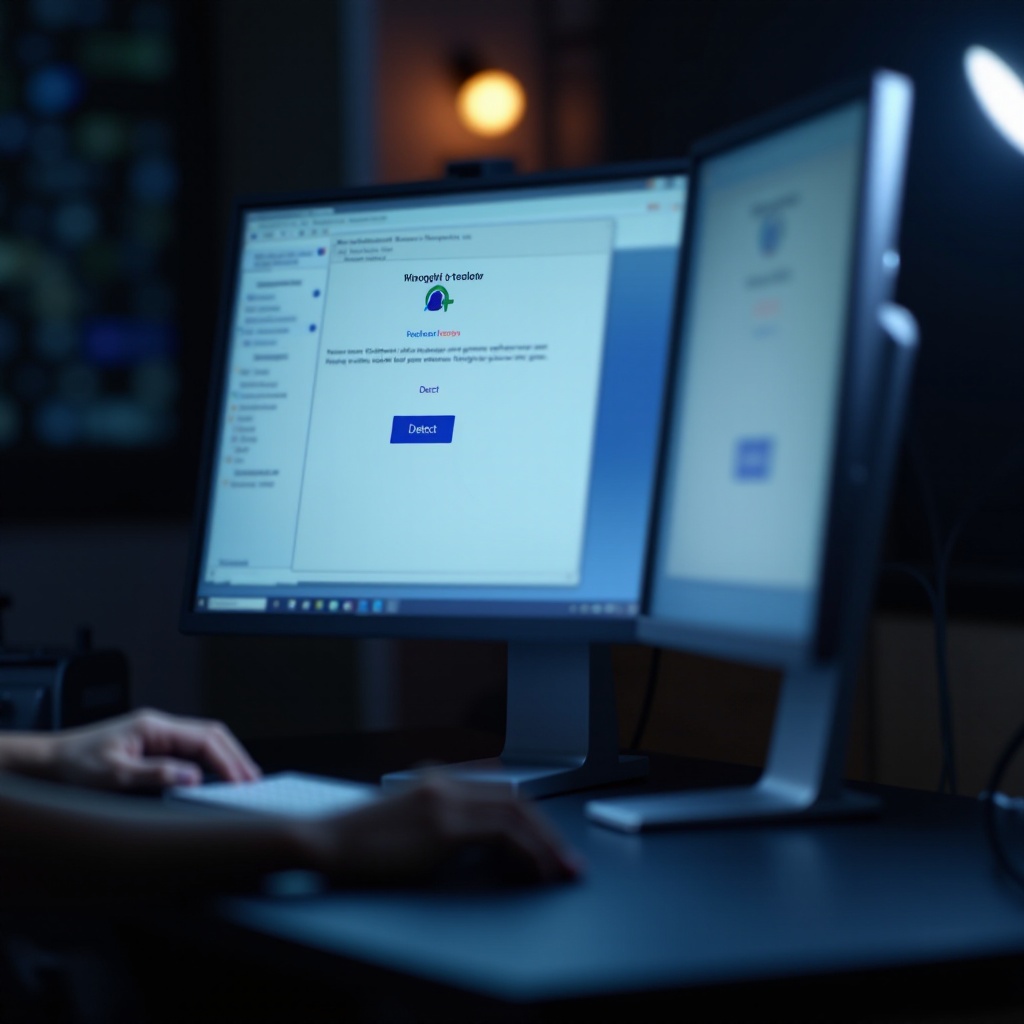
- Detect Option: Locate the ‘Detect’ button under ‘Multiple displays’ and click it to prompt Windows to search for external monitors.
- Identify Monitors: Utilize the ‘Identify’ feature to show numbers on each monitor, confirming their order.
- Resolution Settings: Check and set the appropriate resolution in the ‘Resolutions’ section, as incorrect settings can affect detection.
These adjustments often rectify detection issues. If the problem continues, it might be necessary to update your graphics drivers.
Updating Graphics Drivers
Outdated graphics drivers are a common culprit behind monitor detection issues. Keep your drivers updated by following these steps:
- Device Manager: Search and open Device Manager.
- Display Adapters: Expand the ‘Display adapters’ section to identify your graphics driver.
- Update Driver: Right-click on it and select ‘Update driver,’ letting Windows search for updates.
- Manual Download: If auto-updates fail, download the latest drivers manually from the manufacturer’s website (NVIDIA, AMD, Intel).
Restart your computer afterward to apply changes. If the detection problem persists, Windows troubleshooting tools may assist further.
Using Windows Troubleshooting Tools
Windows 10 features built-in troubleshooting tools for resolving hardware-related issues:
- Settings App: Access ‘Settings’ via the start menu.
- Updates & Security: Navigate to ‘Updates & Security,’ then choose ‘Troubleshoot’ in the sidebar.
- Hardware and Devices: Run the ‘Hardware and Devices’ troubleshooter to detect and rectify problems potentially causing detection issues.
This process can quickly resolve common system conflicts with peripherals. If unresolved, more advanced troubleshooting might be needed.
Advanced Troubleshooting Techniques
For persistent issues, consider advanced strategies that might require deeper technical insight:
- BIOS Updates: Updating your system’s BIOS can sometimes resolve incompatibility with graphics hardware. Refer to your manufacturer’s directives for guidance.
- Rollback Drivers: If new driver updates exacerbate the issue, reverting to a previous version might help.
- Different Display Modes: Experiment with display modes like Extend, Duplicate, or Second Screen Only to determine if a specific mode detects the monitor.
- Use Safe Mode: Accessing Safe Mode can diagnose third-party software interference. A functioning monitor here suggests recent software changes might be the issue.
These techniques could demand more technical expertise but are often effective for complex problems.
Preventive Measures for Future Issues
Here are some practices to help prevent future monitor detection problems:
- Regular Updates: Keep Windows and device drivers regularly updated to avoid compatibility issues.
- Cable Care: Handling cables carefully prevents physical damage and maintains connection integrity.
- Professional Maintenance: Occasional professional check-ups can foresee hardware malfunctions before they arise.
Consistent upkeep and updates ensure a robust dual-monitor setup, minimizing any future disturbances.
Conclusion
Addressing ‘second monitor not detected’ issues in Windows 10 requires a structured approach ranging from secure connections to exploring advanced troubleshooting steps. Implementing these strategies enhances productivity with a dual-monitor setup while regular maintenance prevents recurrent issues, offering a seamless computing experience.
Frequently Asked Questions
Why is my second monitor not showing up in Windows 10?
Your second monitor might not show up due to loose connections, incorrect settings, or outdated drivers. Ensure physical connections are secure, adjust display settings correctly, and update graphics drivers.
How do I force detect a second monitor in Windows 10?
In Windows Display Settings, use the ‘Detect’ button under multiple displays, which prompts Windows to search for additional monitors.
Can outdated hardware affect my second monitor detection?
Yes, outdated hardware can impact detection. Ensure cables and connectors are in good condition, and consider upgrading components if they’re outdated.