Logitech Keyboard Not Turning On: How to Troubleshoot Effectively
Facing an issue where your Logitech keyboard is not turning on can be disruptive, especially during work or play. Whether you use a wireless or wired model, this sudden unresponsiveness can halt productivity and cause frustration. Fortunately, many of these issues can be resolved with simple troubleshooting steps. From examining power sources to updating drivers, this guide will help you tackle the problem efficiently and restore your keyboard’s functionality.

Common Reasons Why Your Logitech Keyboard Won’t Power On
Renowned for their reliability, Logitech keyboards can occasionally run into power issues. A non-responsive keyboard can result from different factors, such as depleted or incorrectly installed batteries that completely drain power, a malfunctioning power switch, or a poor connection with your computer. Physical damage or outdated drivers can also hinder your keyboard’s functionality. Identifying the root cause is the first step in applying a targeted solution that minimizes downtime.
Basic Troubleshooting Steps to Resolve Power Issues
Initiate your troubleshooting process with basic checks, as these often address common power issues with Logitech keyboards.
Checking and Replacing Batteries
- Inspect the battery compartment to ensure the batteries are properly installed.
- Replace any old batteries with new ones.
- Test the keyboard once more to confirm it powers on.
Inspecting the On/Off Switch
- Set the switch to the ‘on’ position properly.
- Clean the switch area to remove dust or debris.
- Toggle the switch several times to ensure it engages fully.
Verifying Power Connection
- Check the USB port connection for wired keyboards to ensure it’s secure.
- Attempt to connect the keyboard to a different USB port.
- Ensure that your computer is powered and operational.
These initial steps should remedy the keyboard’s power problems for many users. However, if the issue persists, it may be time to explore connectivity-based solutions.
Connectivity Solutions for Logitech Keyboards
If power isn’t the issue, maintaining a reliable connection might be. Regardless of whether your model is wireless or tethered, ensuring a proper connection is imperative.
Ensuring Proper Wireless Pairing
- Ensure the Bluetooth or USB receiver is correctly inserted into your computer.
- Follow your user manual’s instructions to pair the keyboard with your device.
- Position the keyboard closer to the receiver to prevent interference.
Checking USB Connections for Wired Models
- Ensure the USB cable is intact and not frayed.
- Switch to an alternative cable, if available, to exclude a faulty cable as the cause.
- Examine the USB port for debris and clean it with compressed air if necessary.
Once connectivity issues are ruled out, focus on software and drivers to identify potential problems.
Software and Driver Fixes
Software glitches and outdated drivers can prevent Logitech keyboards from working. Applying updates or reinstalling drivers can often remedy these issues.
Updating Logitech Software
- Download the latest software update from Logitech’s official website.
- Install the new software, then restart your computer to see if the problem persists.
- Check all background processes to ensure they are not interfering with the keyboard’s software.
Reinstalling or Rolling Back Drivers
- Navigate to the device manager, locate your keyboard under ‘Keyboards.
- Right-click and select ‘Uninstall device,’ then reboot your system to force a driver reinstallation.
- If issues began after an update, consider rolling back the driver to a previous version.
If solutions involving software and drivers do not resolve the issue, investigate for potential physical and hardware damage.

Addressing Physical and Hardware Damage
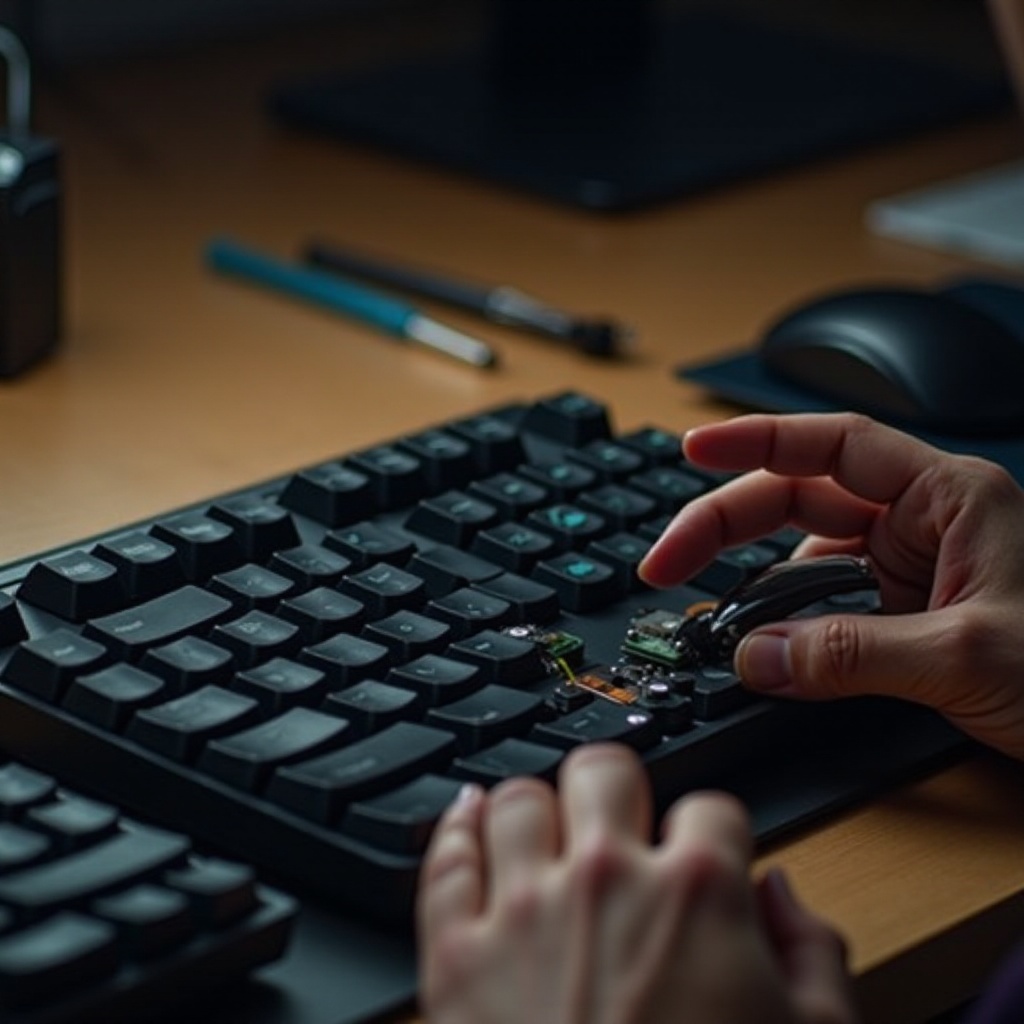
Physical deterioration can sometimes be the culprit. Exposure to moisture, built-up debris, or hardware fatigue may lead to keyboard malfunctions. Examine your keyboard comprehensively for any visible damage. Keys should remain intact and responsive. Should problems continue, consider seeking assistance from Logitech support or opt for professional repair services if your unit is under warranty.
Preventive Maintenance Tips for Your Logitech Keyboard
Consistent maintenance can enhance the lifespan of your Logitech keyboard and minimize unexpected interruptions.
- Keep your keyboard dust-free with a soft cloth or compressed air.
- Store the keyboard in a dry, secure area when not in use.
- Regularly replace batteries to maintain continuous operation.
Adopting these practices can ensure your keyboard remains functional and reliable.
Conclusion
Resolving a Logitech keyboard that won’t turn on typically involves straightforward troubleshooting like confirming battery placement, ensuring connectivity, and updating relevant software. Equipped with this guide, users can tactically address the prevalent causes of this issue and implement preventative measures for future convenience. With a bit of patience and the appropriate steps, you can restore your keyboard’s reliable performance.
Frequently Asked Questions
How do I know if my Logitech keyboard battery needs replacing?
Signs like dimmed LED indicators or an unresponsive keyboard often indicate that the batteries are depleted.
What are my options if all troubleshooting steps fail and my keyboard still won’t connect?
Consider reaching out to Logitech support or seeking advice from a professional repair service if all troubleshooting steps fail.
Can outdated software cause issues with my Logitech keyboard?
Yes, outdated software can disrupt your keyboard’s functioning. Ensuring software and drivers are up-to-date can help prevent such problems.